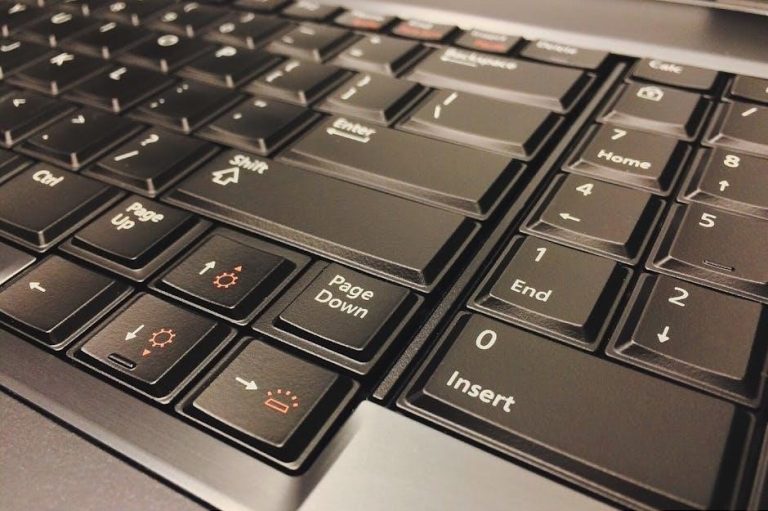
Computer keyboards are essential input devices‚ featuring keys for diverse functions – from text entry to command execution. Understanding these keys unlocks efficient computer use.
Historically‚ keyboard layouts evolved to optimize typing speed and minimize mechanical issues‚ leading to the widely adopted QWERTY arrangement we know today.
What is a Computer Keyboard?
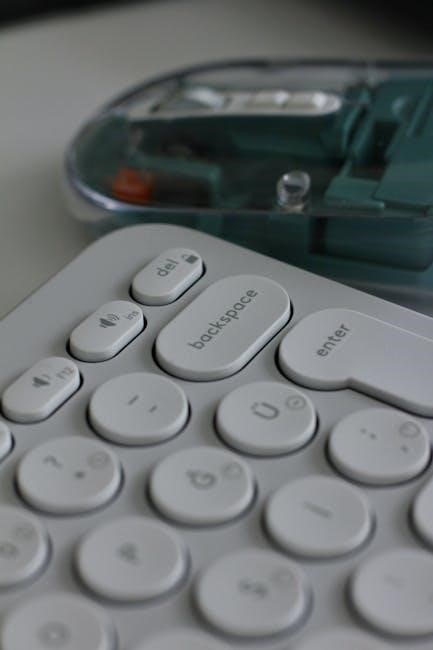
A computer keyboard serves as a primary input device‚ enabling users to interact with computers by transmitting characters‚ commands‚ and functions. It’s essentially a collection of buttons‚ or keys‚ each corresponding to a specific symbol or action. These keys‚ when pressed‚ send signals to the computer‚ which then interprets them and executes the corresponding task.
Keyboards come in various forms‚ including physical keyboards with mechanical or membrane switches‚ and virtual keyboards displayed on touchscreens. The standard layout‚ though subject to regional variations‚ generally consists of alphanumeric keys‚ modifier keys‚ navigation keys‚ and specialized function keys. Understanding the purpose of each key is crucial for efficient computer operation‚ allowing users to navigate software‚ create documents‚ and communicate effectively. It’s a fundamental tool for digital interaction.
Historical Evolution of Keyboard Layouts
The evolution of keyboard layouts began with the mechanical typewriter. Early designs suffered from jamming issues when frequently used keys were adjacent. Christopher Latham Sholes addressed this with the QWERTY layout in the 1870s‚ deliberately separating common letter pairs to slow typists down and prevent jams.
Despite the initial problem being solved by electronic computers‚ QWERTY persisted due to established typing habits and training. Alternative layouts‚ like DVORAK‚ designed for increased efficiency and reduced finger travel‚ emerged but failed to gain widespread adoption. These layouts aimed to optimize hand movement‚ reducing strain and increasing typing speed. Today‚ QWERTY remains dominant‚ though alternative layouts continue to be explored and used by enthusiasts seeking ergonomic advantages;
Standard Keyboard Sections & Key Groups
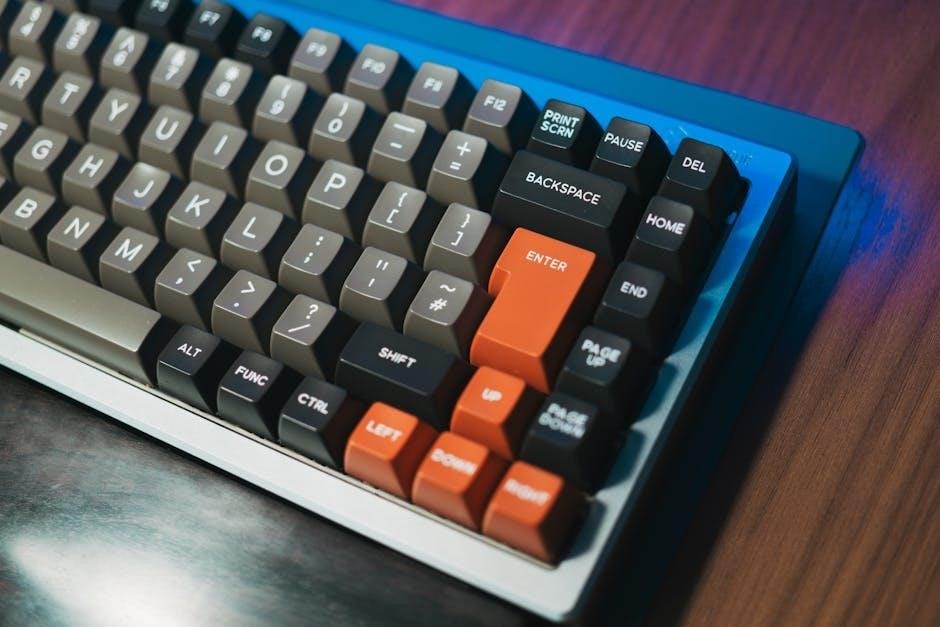
Keyboards are logically divided into sections: alphanumeric‚ modifier‚ navigation‚ and specialized keys‚ each serving distinct purposes for efficient computer interaction and control.
Alphanumeric Keys
Alphanumeric keys form the core of any keyboard‚ encompassing letters (A-Z)‚ numbers (0-9)‚ and punctuation marks. These keys are primarily used for inputting text‚ creating documents‚ writing code‚ and generally communicating with the computer through written language.
The arrangement of these keys generally follows the QWERTY layout‚ though variations exist. Each key press translates into a specific character displayed on the screen. Beyond basic input‚ alphanumeric keys are crucial for entering passwords‚ filenames‚ and commands within software applications. Their consistent placement allows for touch typing‚ increasing efficiency and speed.
These keys are the foundation of almost all computer interactions‚ making them the most frequently used components of a keyboard. Mastering their use is fundamental to computer literacy.
Modifier Keys
Modifier keys‚ such as Shift‚ Ctrl‚ and Alt‚ don’t produce characters on their own but alter the function of other keys when pressed simultaneously. They expand the keyboard’s capabilities‚ enabling shortcuts‚ special characters‚ and advanced commands.
These keys are essential for efficient computer operation‚ allowing users to perform actions quickly without navigating menus. They are integral to many software applications‚ providing shortcuts for common tasks like copying‚ pasting‚ saving‚ and opening files. Understanding modifier key combinations is crucial for maximizing productivity.
Their versatility makes them powerful tools for experienced users‚ streamlining workflows and enhancing control over the computer system.
Shift Key Functions
The Shift key primarily functions to generate uppercase letters when pressed with an alphanumeric key. However‚ its utility extends far beyond capitalization. Holding Shift while pressing other keys unlocks alternate characters displayed on those keys‚ like symbols and punctuation marks.
Furthermore‚ the Shift key is a crucial component in numerous keyboard shortcuts. Combined with Ctrl or Alt‚ it facilitates actions like selecting multiple files‚ pasting text as plain text‚ or accessing specific menu options within applications.
Its widespread use and versatility make the Shift key one of the most frequently utilized keys on a standard computer keyboard‚ essential for both basic and advanced computer operations.
Ctrl Key Functions
The Ctrl key‚ often used in combination with other keys‚ unlocks a vast array of commands and shortcuts within operating systems and applications. Its primary function is to modify the action of another key‚ initiating powerful commands unavailable through single key presses.
Common Ctrl key combinations include Ctrl+C (copy)‚ Ctrl+V (paste)‚ Ctrl+X (cut)‚ and Ctrl+Z (undo). These shortcuts dramatically improve workflow efficiency‚ reducing reliance on mouse-driven menu navigation.
Beyond basic editing‚ Ctrl is integral to application-specific functions‚ like Ctrl+S (save) or Ctrl+P (print). Mastering Ctrl key combinations is fundamental for proficient computer usage and maximizing productivity.
Alt Key Functions
The Alt key‚ similar to Ctrl‚ functions primarily as a modifier key‚ altering the function of other keys when pressed simultaneously. Historically‚ Alt key combinations were heavily used for accessing menu options within Windows applications‚ often underlined letters within menus.
While its role has diminished with the rise of more intuitive interfaces‚ Alt remains crucial for specific shortcuts. Alt+Tab allows quick switching between open windows‚ enhancing multitasking capabilities. Alt+F4 closes the current window.
Application-specific Alt key functions are also common‚ offering alternative navigation or command execution methods. Understanding Alt key combinations provides an additional layer of control and efficiency when interacting with software.
Navigation Keys
Navigation keys are fundamental for moving within documents‚ web pages‚ and operating system interfaces. These keys allow users to precisely control their cursor position and scroll through content without relying solely on a mouse.
The arrow keys (Up‚ Down‚ Left‚ Right) are the most basic navigation tools‚ enabling character-by-character or line-by-line movement; Home and End keys quickly jump to the beginning or end of a line‚ respectively‚ while Page Up and Page Down navigate by entire screenfuls.
Mastering these keys significantly boosts efficiency‚ especially when working with lengthy documents or code. They offer a faster and more precise alternative to scrolling and clicking‚ streamlining the user experience.
Arrow Keys – Up‚ Down‚ Left‚ Right
Arrow keys are arguably the most frequently used navigation tools on a computer keyboard‚ providing granular control over cursor movement. These keys – Up‚ Down‚ Left‚ and Right – allow precise positioning within text‚ spreadsheets‚ and graphical interfaces.
Their functionality extends beyond simple cursor movement; they’re integral to gaming‚ allowing character control and directional input. In many applications‚ arrow keys navigate menus‚ lists‚ and options‚ offering a quick alternative to mouse clicks.
Understanding their context-sensitive behavior is key – their function can vary depending on the active application. They are essential for efficient text editing‚ data entry‚ and overall computer navigation.
Home and End Keys
Home and End keys are essential for navigating text and data efficiently‚ offering quick jumps to specific locations within a line or document. The Home key typically moves the cursor to the beginning of the current line‚ while the End key positions it at the line’s end.
Their utility extends beyond simple text editing. In spreadsheets‚ these keys navigate between the first and last cells of a row. Within web browsers‚ they can scroll to the top or bottom of a webpage‚ providing rapid navigation.
Combined with modifier keys like Shift or Ctrl‚ they offer expanded functionality‚ such as selecting text from the cursor position to the beginning or end of a line or document.
Page Up and Page Down Keys
Page Up and Page Down keys are crucial for navigating through documents and web pages‚ allowing users to scroll content in larger increments than the arrow keys. The Page Up key moves the view up one page‚ while Page Down scrolls down one page.
These keys are particularly useful when dealing with lengthy documents or web pages‚ enabling quick and efficient browsing without constant mouse scrolling. They function consistently across various applications‚ including word processors‚ web browsers‚ and PDF viewers.
Like other navigation keys‚ Page Up and Page Down can be combined with modifier keys to extend their functionality‚ such as selecting text or triggering specific actions within an application.
Specialized Keys and Their Functions
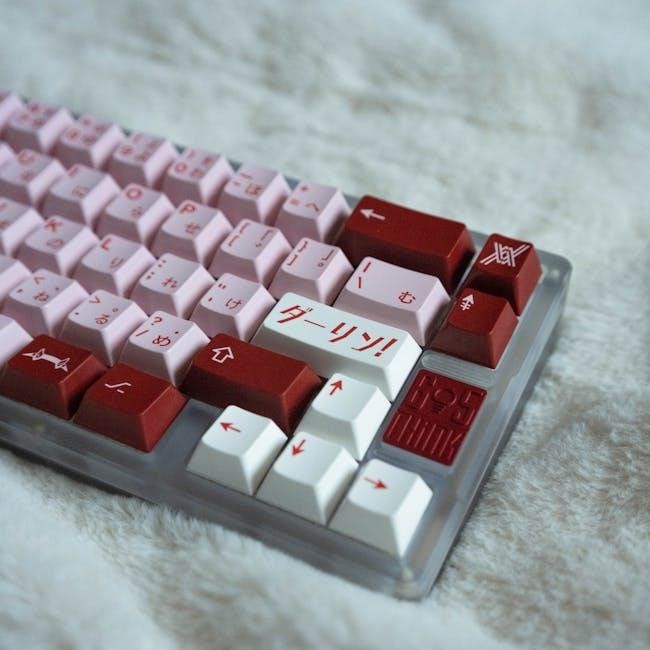
Specialized keys‚ like Function keys‚ Insert‚ and Delete‚ offer unique commands beyond basic typing‚ enhancing user control and streamlining various computer tasks.
Function Keys (F1-F12)
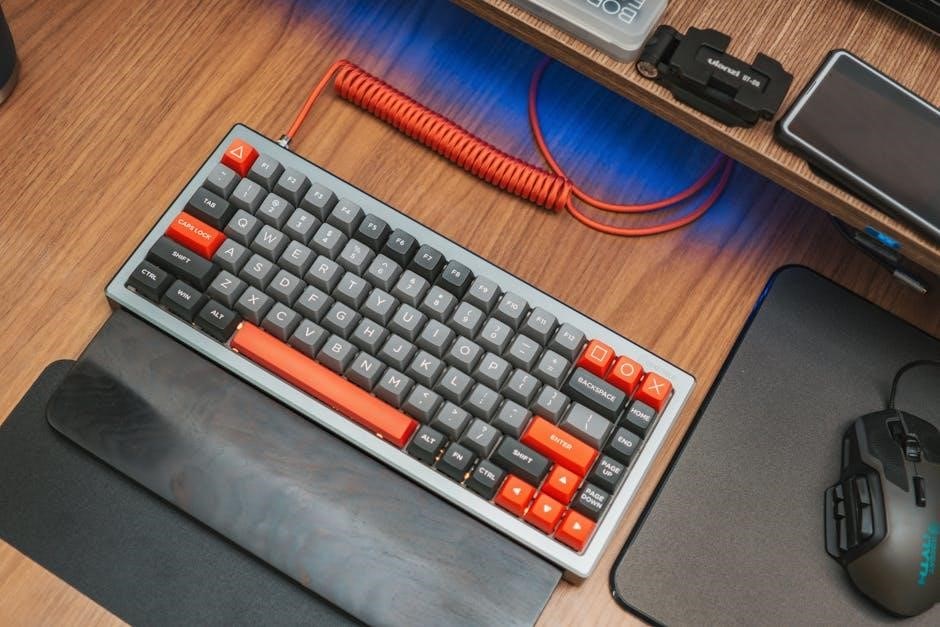
Function keys (F1-F12)‚ positioned along the top of most keyboards‚ provide quick access to frequently used commands‚ though their specific actions vary depending on the active application. Historically‚ these keys were grouped on the left side of older computer setups‚ a design that has since shifted.
Each function key caters to a different purpose‚ offering shortcuts that boost productivity. For example‚ F1 often opens the help menu within a program‚ providing immediate assistance. Other keys might control volume‚ brightness‚ or launch specific application features. Their versatility makes them invaluable for efficient workflow.
On laptops‚ accessing these functions often requires holding down the ‘Fn’ key in combination with the desired F-key‚ due to space constraints and the integration of multimedia controls onto the same keys.
Common F1-F12 Uses in Different Applications
F1 universally launches help documentation within most software‚ offering contextual assistance. F2 frequently renames selected files or folders‚ streamlining organization. F3 often initiates a search function‚ quickly locating specific content. F4 commonly opens the address bar in browsers or displays a list of open files.
F5 typically refreshes the current window‚ updating displayed information. F6 often focuses the address bar in browsers or navigates between elements within a document. F7 may activate spellcheck in word processors. F8 frequently displays a boot menu during startup.
F9 can refresh certain applications or send commands. F10 activates menu bars. F11 toggles full-screen mode. F12 often opens developer tools in browsers‚ aiding web development.
Numeric Keypad
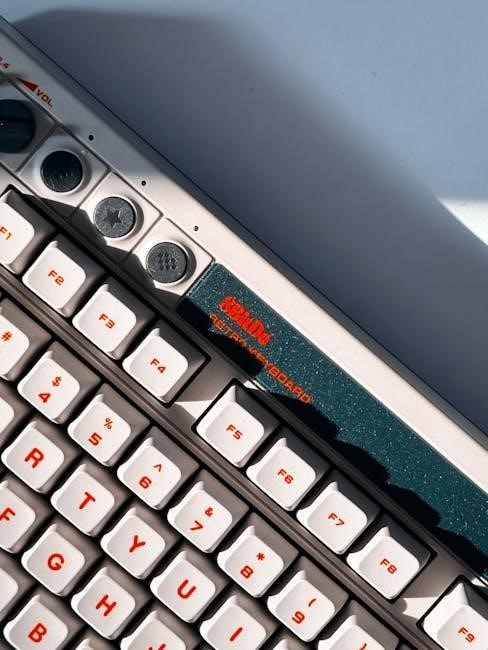
The numeric keypad‚ typically found on the right side of full-sized keyboards‚ facilitates rapid numerical data entry. It mimics a calculator’s layout‚ featuring digits 0-9‚ arithmetic operators (+‚ -‚ *‚ /)‚ and a decimal point. This is incredibly useful for accountants‚ data analysts‚ and anyone working extensively with numbers.
Num Lock is a crucial key associated with the numeric keypad. When activated‚ the keypad functions as intended for numerical input. When deactivated‚ the keypad keys often double as navigation controls – arrow keys‚ Home‚ End‚ Page Up‚ and Page Down – offering versatile functionality.
Many laptops integrate a virtual numeric keypad‚ activated through a Function key combination‚ providing numerical input without a dedicated physical keypad.
Insert Key (INS)
Most standard computer keyboards feature an Insert key (INS)‚ usually positioned above the arrow keys and adjacent to the Delete key. Its primary function is toggling between two distinct input modes: character overtype and insertion. In overtype mode‚ new characters replace existing ones at the cursor position.
Conversely‚ in insertion mode‚ new characters are inserted before the cursor‚ shifting existing text to the right. This makes it ideal for adding information without overwriting existing content. The behavior of the Insert key can vary depending on the application being used.
Some programs may assign different functions to the Insert key‚ such as pasting copied data or initiating specific commands‚ enhancing its versatility.
Delete Key
The Delete key‚ commonly found on computer keyboards‚ serves a straightforward yet crucial function: removing characters or content. When positioned within text‚ pressing Delete eliminates the character to the right of the cursor‚ effectively erasing it. This differs from the Backspace key‚ which deletes characters to the left.
Beyond text editing‚ the Delete key’s functionality extends to file management. Selecting a file and pressing Delete typically moves it to the Recycle Bin (or Trash)‚ allowing for potential recovery. However‚ permanently deleting files requires specific commands.
Its utility varies across applications; some programs repurpose it for specific actions‚ like deleting selected objects or clearing fields.
Backspace Key
The Backspace key is a fundamental component of most computer keyboards‚ primarily used for deleting characters. Unlike the Delete key‚ Backspace removes the character to the left of the cursor‚ allowing users to correct typos and refine text efficiently. It’s an essential tool for editing and revising written content.
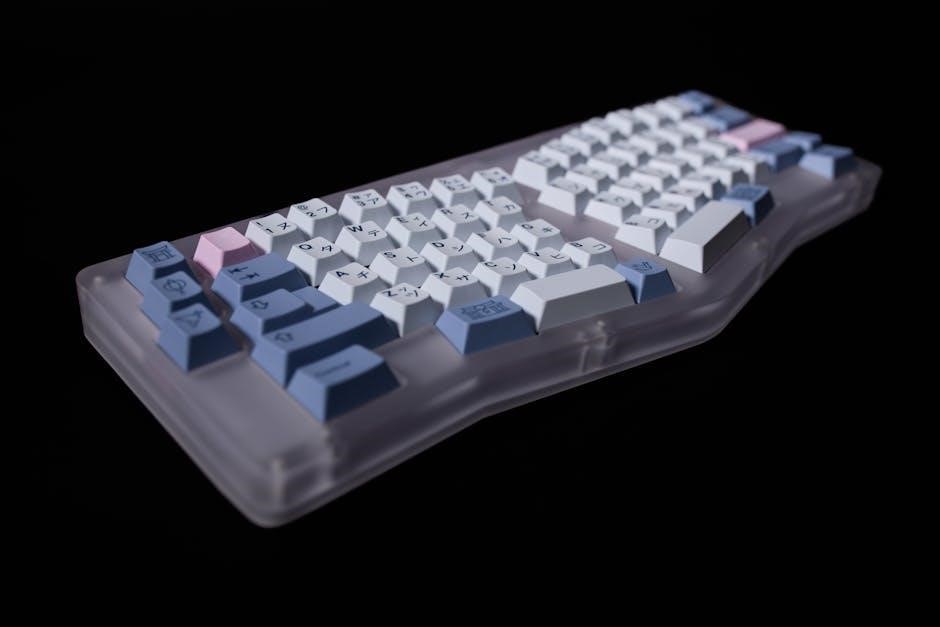
Beyond simple character deletion‚ the Backspace key often navigates web browsers‚ moving the user back to the previously visited page – mirroring the “back” function within a browser’s interface. This dual functionality enhances its overall utility.
Its behavior can also vary slightly depending on the application being used‚ but its core purpose remains consistent: to step backward and remove content.
Enter/Return Key
The Enter/Return key‚ often simply called “Enter‚” is arguably one of the most frequently used keys on a computer keyboard. Its primary function is to signal the end of an input and initiate an action; In text editors and word processors‚ it creates a new paragraph or line break‚ structuring written content.
However‚ its role extends far beyond text formatting. In dialog boxes and forms‚ pressing Enter typically confirms the input and submits the information. It also executes commands in command-line interfaces and confirms selections in menus.
Essentially‚ the Enter key acts as an affirmation‚ telling the computer to “accept” or “proceed” with the current action.
Escape (Esc) Key
The Escape (Esc) key is a versatile key primarily used to cancel or exit a current operation‚ dialog box‚ or full-screen mode. It’s often located in the top-left corner of the keyboard‚ making it easily accessible; Think of it as a universal “undo” or “stop” button for many software applications.
When browsing the web‚ Esc typically stops page loading. In media players‚ it pauses playback or closes the full-screen view. Within programs‚ it often dismisses menus or cancels ongoing processes without saving changes.
Its function is to provide a quick and easy way to back out of something‚ offering a convenient alternative to navigating through menus or clicking “cancel” buttons.
Tab Key
The Tab key‚ typically located above the Caps Lock key and to the left of the Q key‚ serves multiple crucial functions within computing. Its primary purpose is to insert horizontal space‚ often used for indentation in text documents or code editors‚ creating organized and readable content.
Beyond formatting‚ the Tab key is vital for navigating user interfaces. Pressing Tab cycles through interactive elements like buttons‚ text fields‚ and links on a webpage or within an application window‚ streamlining interaction without a mouse.
It’s a cornerstone of accessibility‚ enabling keyboard-only navigation‚ and a productivity booster for efficient data entry and form completion;
Caps Lock Key
The Caps Lock key‚ prominently positioned on most keyboards‚ toggles between uppercase and lowercase letters. When activated‚ it causes all alphabetic characters typed to appear in uppercase‚ a feature historically used for writing entire words or phrases in capitals for emphasis.
However‚ its modern usage has diminished somewhat‚ as holding down the Shift key achieves the same effect for individual words. Despite this‚ Caps Lock remains a standard key‚ often unintentionally pressed‚ leading to frustrating typing errors.
Some applications utilize Caps Lock for specific functions‚ but its core purpose remains altering letter case‚ offering a quick‚ albeit sometimes clumsy‚ method for capitalization.
Windows Key
The Windows key‚ typically adorned with the Windows logo‚ is a crucial component of the Windows operating system. Pressing this key opens the Start menu‚ providing access to applications‚ settings‚ and system functions – a central hub for navigating the desktop environment.
Combined with other keys‚ the Windows key unlocks a range of shortcuts. For example‚ Windows + D minimizes all windows‚ while Windows + L locks the computer‚ enhancing productivity and security.
Its functionality extends to system commands and quick actions‚ making it an indispensable tool for efficient Windows usage‚ streamlining common tasks and improving overall user experience.
Print Screen Key
The Print Screen (PrtScn) key facilitates capturing the contents of your computer screen. Pressing this key copies an image of the entire screen to the clipboard‚ ready for pasting into image editing software or document applications.
Variations exist; pressing Alt + Print Screen captures only the active window. Windows Key + Shift + S activates the Snipping Tool‚ allowing for selective screen captures – a versatile feature for grabbing specific areas.
This functionality is invaluable for creating visual documentation‚ sharing screenshots‚ or troubleshooting issues. It’s a quick and easy method for visually communicating information displayed on your monitor‚ proving incredibly useful in various scenarios.
Laptop Keyboard Considerations
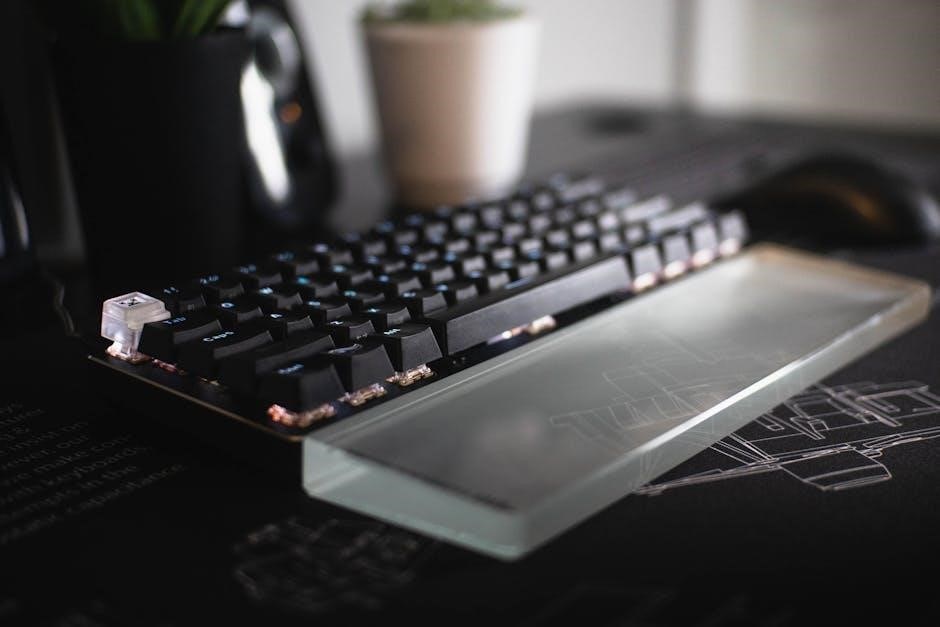
Laptop keyboards prioritize compactness‚ impacting key size and accuracy. Function key placement often differs from desktop layouts‚ utilizing the Fn key for secondary functions.
Laptop Keyboard Size and Accuracy
Key size on laptop keyboards is a crucial factor directly influencing typing accuracy. Due to space constraints‚ laptop keys are often smaller and have less travel than those found on full-sized desktop keyboards. This reduction in size can lead to increased typing errors‚ especially for individuals accustomed to larger keys.
A full-size keyboard‚ even integrated into a laptop chassis‚ is generally preferred for optimal accuracy. Manufacturers strive to balance portability with usability‚ but compromises are often made. Key spacing and the tactile feedback provided by the keys also play significant roles. A well-designed laptop keyboard will minimize these drawbacks‚ offering a comfortable and accurate typing experience despite its smaller footprint.
Ultimately‚ selecting a laptop with a keyboard that suits your typing style and hand size is paramount for productivity and comfort.

Function Key Placement on Laptops
Function key (F1-F12) placement on laptops often differs from traditional desktop layouts. While desktop keyboards typically position these keys in a dedicated row across the top‚ laptops frequently integrate them into the top row alongside standard number keys. This requires users to press the ‘Fn’ key simultaneously to activate the function key’s primary command.
Historically‚ older computer sets positioned function keys on the left side of the keyboard‚ a design rarely seen today. Modern laptops prioritize compactness‚ leading to this integrated approach. Some laptops offer a BIOS setting to reverse this behavior‚ making function keys directly accessible without the ‘Fn’ modifier.
Understanding this placement is key to efficiently utilizing the diverse functions these keys offer across various applications.
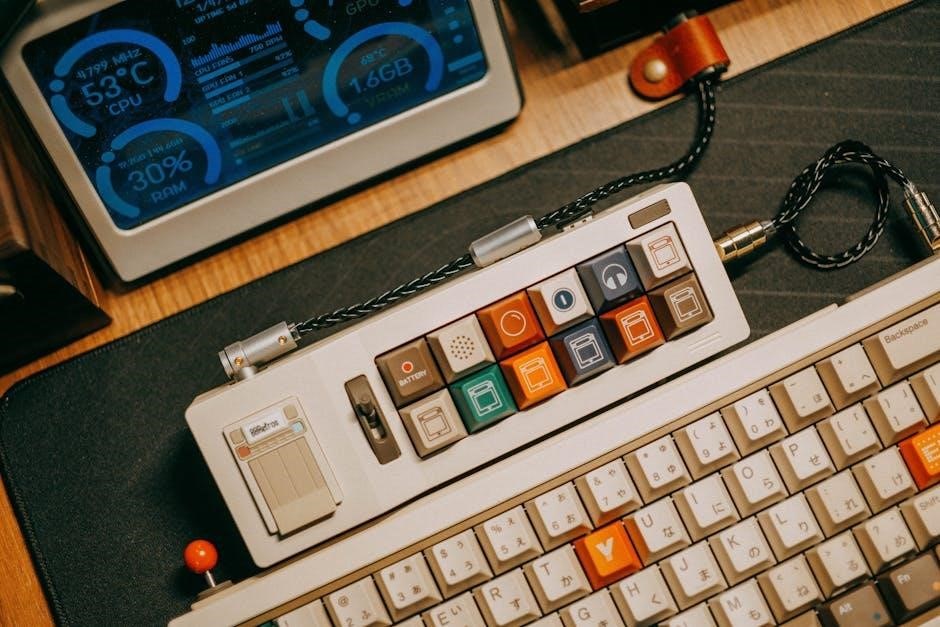
Keyboard Layout Variations
Keyboard layouts like QWERTY‚ DVORAK‚ and AZERTY cater to different languages and typing preferences‚ impacting efficiency and ergonomics for users globally.
QWERTY Layout
QWERTY is the most prevalent keyboard layout‚ named after the first six letters on the top row of letters. Its origins trace back to the late 19th century‚ designed to prevent typewriters’ mechanical arms from jamming by separating commonly used letter pairs.
Despite advancements in technology rendering the original mechanical limitations obsolete‚ QWERTY persists due to its widespread familiarity and established muscle memory among typists. While not necessarily the most efficient layout for speed or ergonomics‚ its dominance makes retraining to alternative layouts a significant undertaking for most users.
The layout’s arrangement isn’t optimized for typing speed‚ but its ubiquity ensures continued use across various devices and operating systems‚ solidifying its position as the standard for decades to come.
DVORAK Layout
The Dvorak Simplified Keyboard layout‚ designed in the 1930s by August Dvorak‚ aims to improve typing efficiency by placing the most frequently used letters on the home row – the row where your fingers rest. This minimizes finger travel and reduces strain‚ potentially leading to faster typing speeds and increased comfort.
Unlike QWERTY‚ which was initially designed to slow down typing to prevent mechanical jams‚ Dvorak prioritizes ergonomic efficiency. Studies suggest potential benefits in speed and reduced repetitive strain injuries‚ though widespread adoption remains limited due to the significant learning curve and established QWERTY dominance.
Switching to Dvorak requires substantial retraining‚ but proponents argue the long-term benefits outweigh the initial investment for dedicated typists.
AZERTY Layout
The AZERTY keyboard layout is a widely used standard‚ particularly in France and Belgium. Its name derives from the arrangement of the first three letters on the top-left row: A‚ Z‚ E‚ R‚ T‚ and Y. It evolved from the QWERTY layout‚ adapting to the specific needs of the French language‚ which features accented characters frequently.
Key differences from QWERTY include the placement of the ‘A’ and ‘Q’ keys‚ as well as the location of certain punctuation marks. This layout facilitates easier access to French diacritics like accents‚ cedillas‚ and circumflexes‚ crucial for accurate French text input.
While less common outside of Francophone regions‚ AZERTY remains a vital standard for millions of users‚ demonstrating the importance of keyboard layouts tailored to specific linguistic requirements.